Your download is starting
Download not starting automatically? Download BlinkEasy for Windows again
Step-by-Step Installation Guide
Screens may look slightly different depending on your browser or operating system version.
-
Open the installer
Open the downloaded BlinkEasy .msi file. When the Setup Wizard appears, select Next.
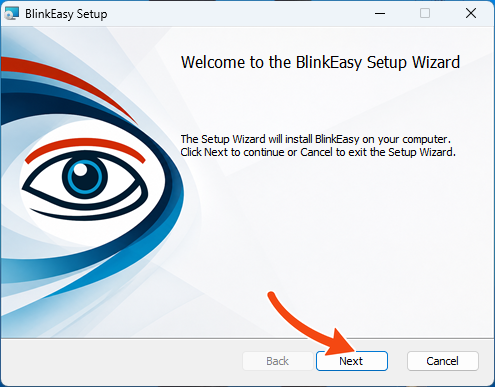
Select Next to begin. -
Install with limited system access
Keep Install just for you selected to avoid system-wide changes, or choose Install for all users of this machine to install in
C:\Program Files. Then select Next.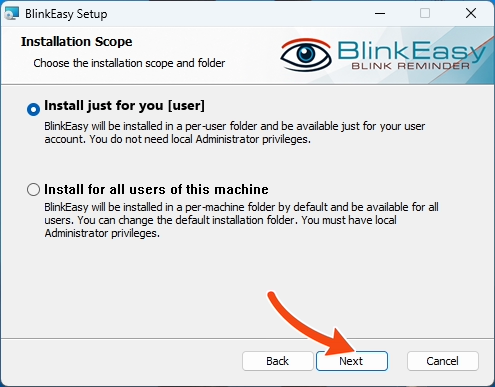
Choose an installation option, then select Next. -
Review the setup options
Keep the default location and desktop shortcut, or change them if you prefer. Select Next.
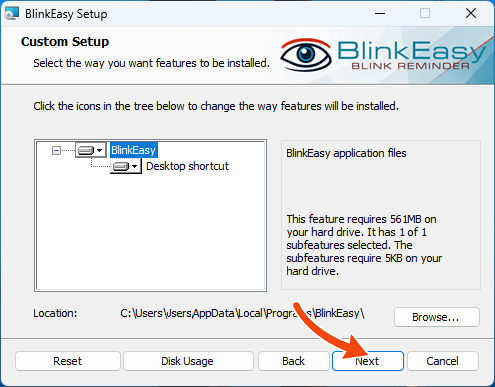
Review the options, then select Next. -
Install BlinkEasy
Select Install. If Windows asks for permission, choose Yes.
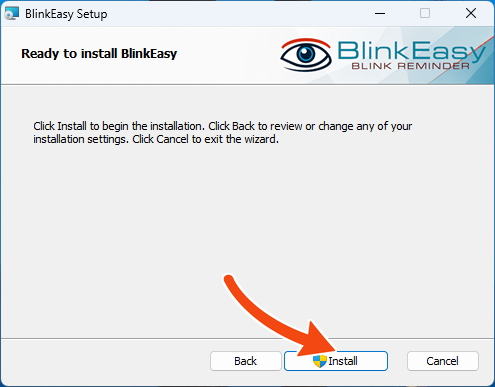
Select Install to continue. -
Wait for installation to finish
Keep the setup window open while BlinkEasy is installed.
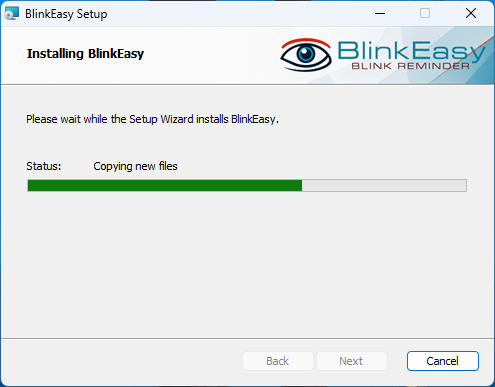
Installation usually takes only a moment. -
Finish and open BlinkEasy
Keep Run BlinkEasy after installation selected, then choose Finish.
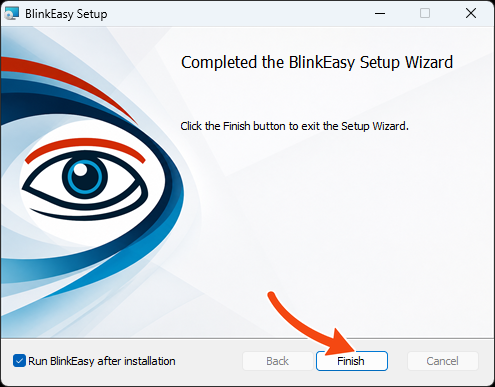
Select Finish to open BlinkEasy. -
Start your free trial
Select Start 14 day Trial. If you already have a license, enter the key and select Activate Key.
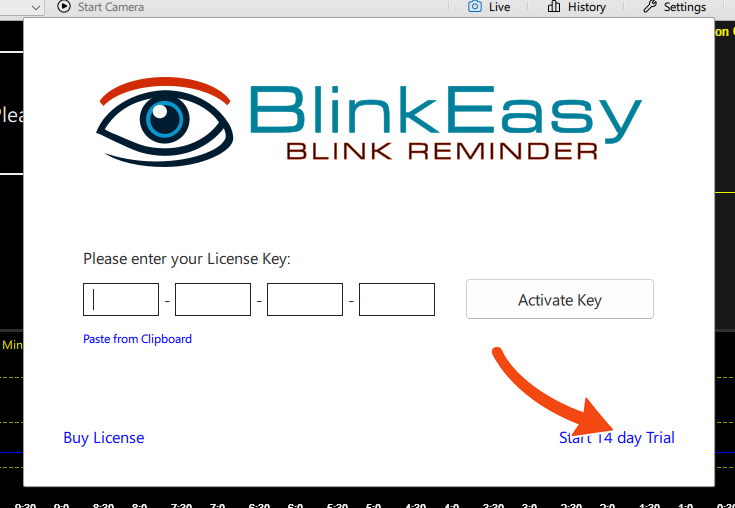
Select Start 14 day Trial to begin.
How To Uninstall
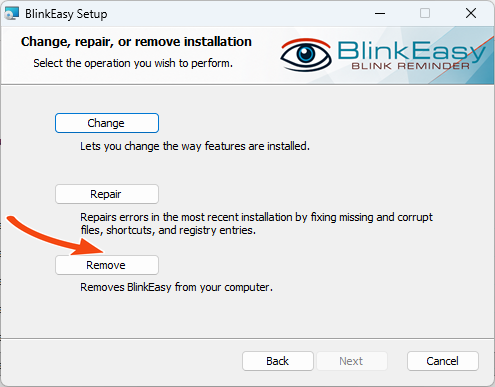
Open Windows Settings and choose Apps. Open Installed apps on Windows 11 or Apps & features on Windows 10. Find BlinkEasy and select Uninstall. When setup opens, choose Remove, then Next.