Your download is starting
If your download doesn't start automatically, please click here.
macOS installation
Step-by-Step Installation Guide
Screens may look slightly different depending on your browser or operating system version.
-
Move BlinkEasy to Applications
Open the downloaded BlinkEasy .dmg file, then drag BlinkEasy.app onto the Applications folder and wait for the copy to finish. If Finder asks whether to replace an existing copy, choose Replace.

Drag BlinkEasy.app onto Applications. -
Open BlinkEasy
Open the Applications folder in Finder, then double-click BlinkEasy. If macOS asks you to confirm, select Open. Then start your trial or enter your license key.
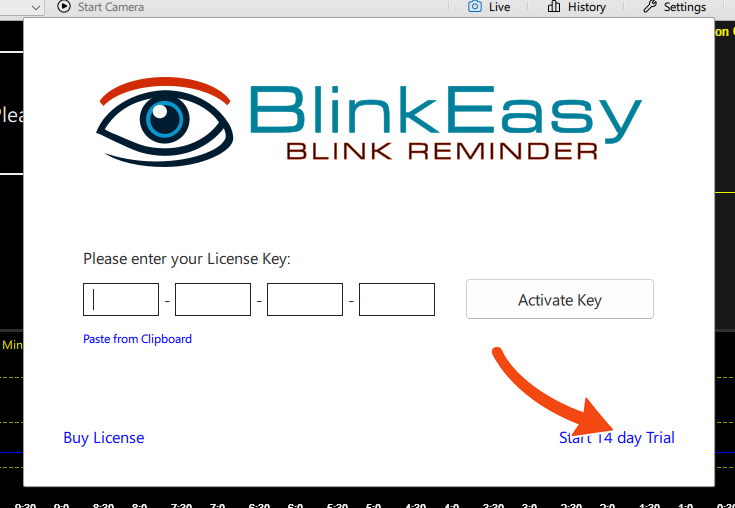
Select Start 14 day Trial to begin.

Easy to remove
How to Uninstall
Quit BlinkEasy, then move it from Applications to the Trash.