Screen ergonomics
Using a Computer With Progressive Lenses or Bifocals
Adjust your computer setup when you wear progressive lenses or bifocals. Check screen height, chin position, and useful measurements for an eye appointment.
Your glasses are part of your desk setup
Progressive lenses and bifocals provide different viewing areas for different distances. The part you use to read a book may not be the part that works for a computer screen farther away. That makes screen position worth checking with the glasses you actually wear at your desk.
CCOHS explains that everyday bifocals may lead people to tip their head back to see a display, while progressive lenses can have a limited area that brings screen work into focus. Different lens designs and different tasks call for individual adjustment. Read CCOHS guidance on computer and screen-specific glasses.
Notice what happens when you start reading
Open a document you use regularly and sit with your back supported. Read a few lines near the top, middle, and bottom of the screen. Notice whether your chin rises, you lean toward the display, or you move your head to find a clear view.
These observations are useful clues for adjusting the workspace and describing it at an appointment. Try your usual tasks rather than a single large headline: email, a spreadsheet, and printed notes can each put the information in a different place.
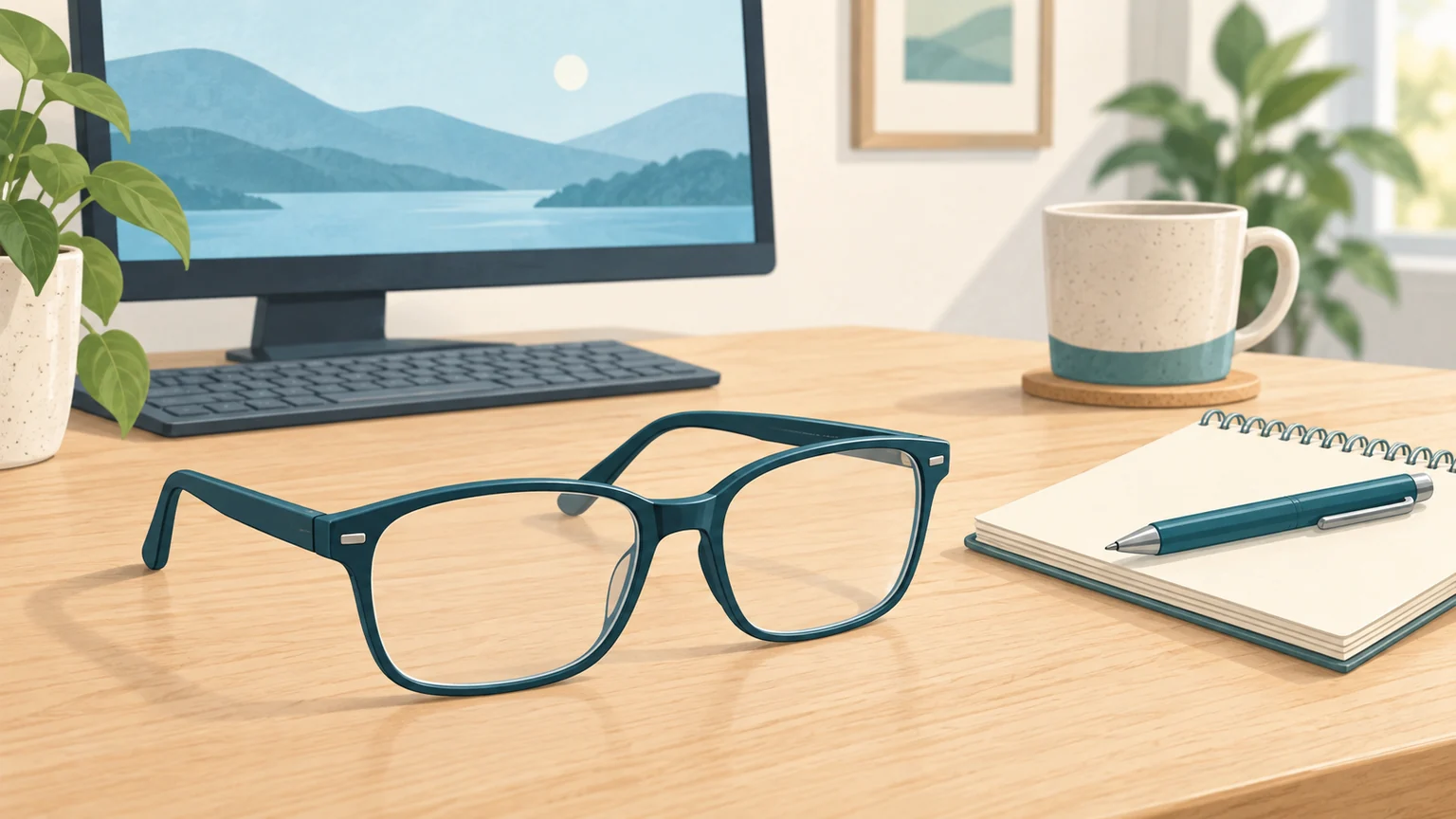
Bring details about your screen setup and everyday tasks to your eye appointment.
Try a lower screen position
The usual advice to place the screen top near eye level is a starting point. CCOHS notes that people wearing bifocals or progressive lenses may prefer the top slightly lower, so they can look through the appropriate part of the lenses without lifting their chin. See CCOHS guidance on screen height and corrective lenses.
Adjust the height a little at a time, then reread the same document. OSHA also suggests lowering the monitor for bifocal wearers and, if needed, tilting it upward toward the viewer. Check for reflections after changing the angle. Read OSHA recommendations for bifocal users.
If small text makes the check difficult, enlarge it so you can evaluate the position using a readable page. Keep track of both changes: a larger font and a lower display solve different setup problems. Learn how to adjust Windows text size and scaling.
Bring a few workspace measurements
A brief desk note can make it easier to explain your routine to an optometrist or ophthalmologist. Measure from your usual seated position and label distances in inches or centimeters. Useful details include:
- The distance from your eyes to each screen you use.
- Whether the top of the main screen is above, level with, or below your eyes, and roughly how far.
- The distance to printed pages or other close work on your desk.
- Your monitor sizes, how they are arranged, and which one you use most.
- The glasses you wear for each task and when you notice yourself lifting your chin or leaning.
A side-view photo of the setup can add context. Hide private information on the screens before taking or sharing one. Include the keyboard and chair so the photo shows more than the monitor alone.
Discuss the tasks your glasses need to support
Explain whether you work mainly at one monitor, switch between several screens, read paper documents, or frequently look across the room. Ask how your current glasses fit those tasks and whether a different lens option is appropriate. CCOHS recommends choosing computer-specific glasses in consultation with an eye-care professional; there is no single design that suits everyone.
Bring the notes even if you have already improved the screen position. They give the conversation a concrete starting point and help you describe what still feels awkward in your everyday work.