Screen ergonomics
How to Make Text and Apps Bigger in Windows
Make text, menus, and apps bigger in Windows 11 and Windows 10. Step by step: display scaling (DPI), text size, and browser zoom for easier reading.
What display scaling changes
Larger text and controls can make Windows easier on the eyes, so you can read comfortably without leaning toward the screen. Windows display scaling makes menus, buttons, and text larger. You may also see this called DPI scaling. In Windows 11, the setting is called Scale, under Settings > System > Display.
A higher scale uses more screen space for each item, so fewer items fit at once. Choose a setting that lets you read and use your apps comfortably from your usual sitting position. Keep the display resolution at its recommended setting to preserve sharp text. Read Microsoft guidance on scaling and display resolution.
Adjust text and app sizes to make your everyday work easier to read.
Increase display scaling in Windows 11
-
Open Start > Settings > System > Display. You can also right-click an empty area of your desktop and select Display settings.
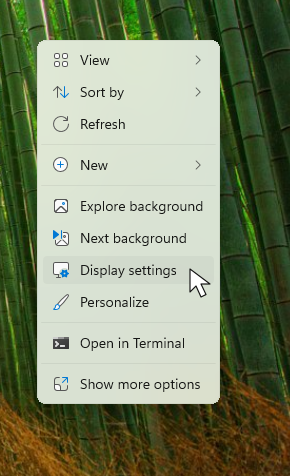
Right-click an empty area of your desktop to open Display settings directly. View full-size screenshot
- If several displays are shown at the top, select the one you want to adjust.
- Under Scale & layout, open the percentage dropdown beside Scale.
- Choose a larger available percentage. For example, if the current setting is 100%, try 125%; if it is already 125%, try 150%, if offered.
- Open an app you use often and check the text and controls. Return to the same dropdown if you want to try another size.
Use the preset percentages for this first adjustment. Leave Display resolution at the value marked Recommended; changing resolution can make text less sharp. The available scale options depend on your display.
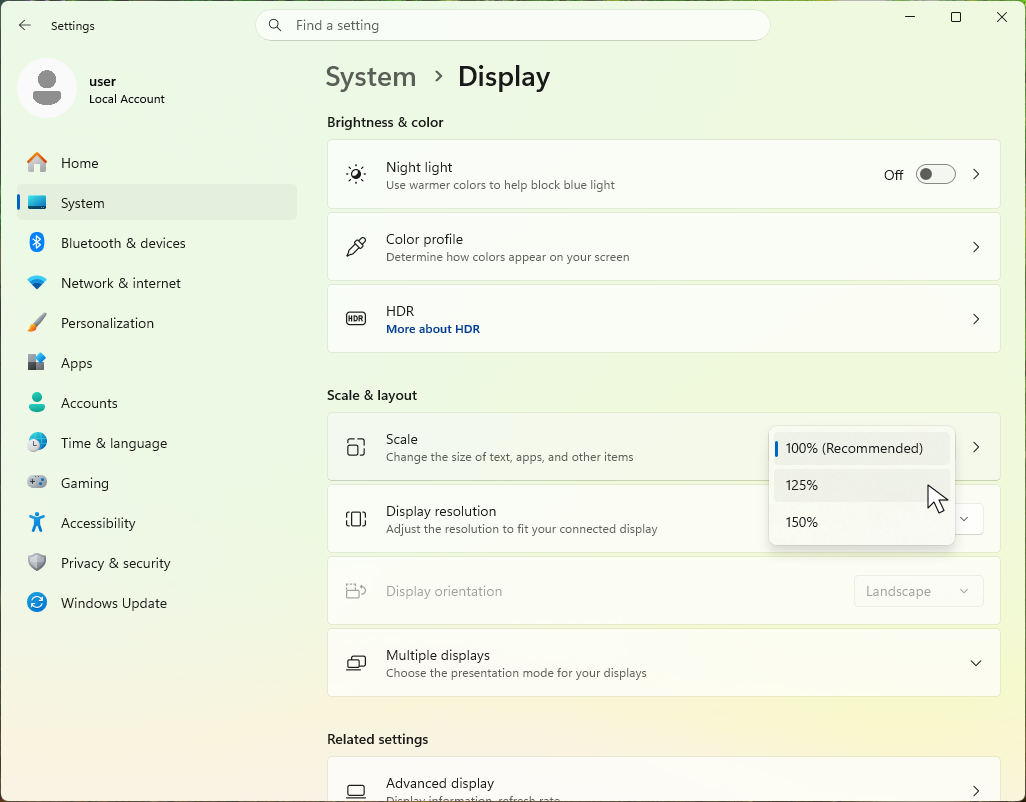
Choose a larger percentage from the Scale dropdown to make text and apps bigger. View full-size screenshot
In Windows 10, open Settings > System > Display and look under Scale and layout for Change the size of text, apps, and other items. Choose a larger available percentage there.
Most changes appear right away. If an app still looks wrong, save your work and close and reopen it. Windows may ask you to sign out and back in for some apps to use the new scale correctly. See Microsoft instructions for making text and apps bigger.
Set a comfortable scale on each monitor
A laptop screen and a desktop monitor can need different scale settings. In System > Display, select Identify to show a number on each screen, then select the matching numbered display in Settings before changing its scale.
Check each display from the position where you normally use it. The percentages do not have to match: the goal is readable text on both screens. Move an app between them to see whether it remains comfortable to use. Read Microsoft guidance on multiple monitors.
Make only the text bigger
If buttons and windows already feel large enough, try the separate text-size setting. In Windows 11, open Settings > Accessibility > Text size. Move the slider to the right, check the sample text, and select Apply.
This enlarges text in Windows and apps that support the setting, without increasing the size of images and other items in the same way as display scaling. In Windows 10, find the text-size slider under Settings > Ease of Access > Display. See Microsoft instructions for changing text size.
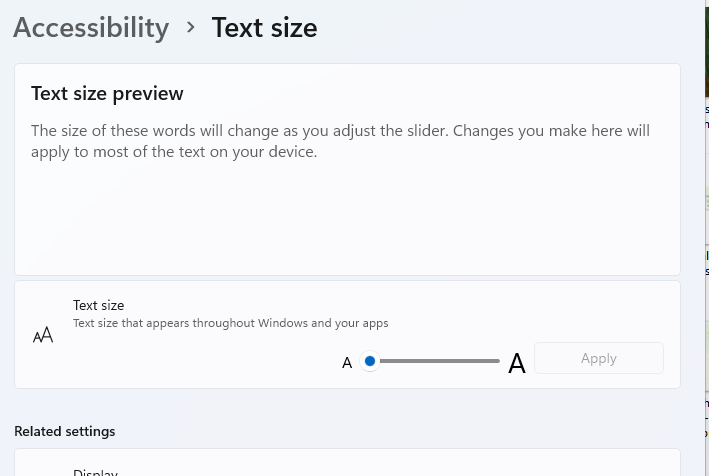
Use Text size to enlarge supported text without scaling the whole interface. View full-size screenshot
Zoom in when one page or document is too small
If the rest of Windows looks comfortable but a webpage is hard to read, use the browser zoom controls. These shortcuts work in most browsers, including Microsoft Edge, Google Chrome, and Mozilla Firefox:
- Ctrl + +: Zoom in.
- Ctrl + -: Zoom out.
- Ctrl + 0: Reset page zoom.
Page zoom enlarges the content of a webpage without changing Windows menus. Document editors and spreadsheet apps often have their own zoom controls for making text and cells easier to read.
Try the new size with your usual work
Spend a few minutes with your usual email, documents, and browser tabs. Check whether you can read comfortably without leaning closer, and whether the windows you need still fit on the screen. If the whole interface feels too large, try the next smaller preset and use text size or app zoom for the parts that still need enlargement.
Once the size feels right, let BlinkEasy remind you to blink and take regular screen breaks while you work. For screen height, distance, and lighting, our desk setup checklist covers the next adjustments. Review your screen ergonomics.