Screen ergonomics
Computer Screen Ergonomics: Height, Distance, and Glare
How high and how far away should your monitor be? Set screen height, viewing distance, text size, and lighting with this practical desk setup checklist.
Start with the work you actually do
A useful desk setup lets you read, type, and move between tasks comfortably. Start with the equipment you already have. Open a document or application you use often and sit as you normally would. Notice whether you move closer to read, turn toward a second display, or shift around to avoid a reflection.
Change one thing at a time and try it with real work before adjusting something else. A layout that works for reading a document may need a small change when you switch to a video call or detailed spreadsheet.
Use the five-minute desk check to choose your first adjustments.
Adjust screen distance and height
OSHA gives 20 to 40 inches (50 to 100 cm) as a general viewing-distance range for a computer monitor. Use this as a starting point, with enough room to read comfortably while your back remains supported. Increase text size or zoom if moving the screen farther away makes you lean forward.
Place your main display in front of you, with its top at or slightly below eye level. Adjust from there so you can see the work without lifting your chin or bending toward the screen. Your height, display size, and the glasses you use can affect which position works for you. See OSHA guidance on monitor placement.
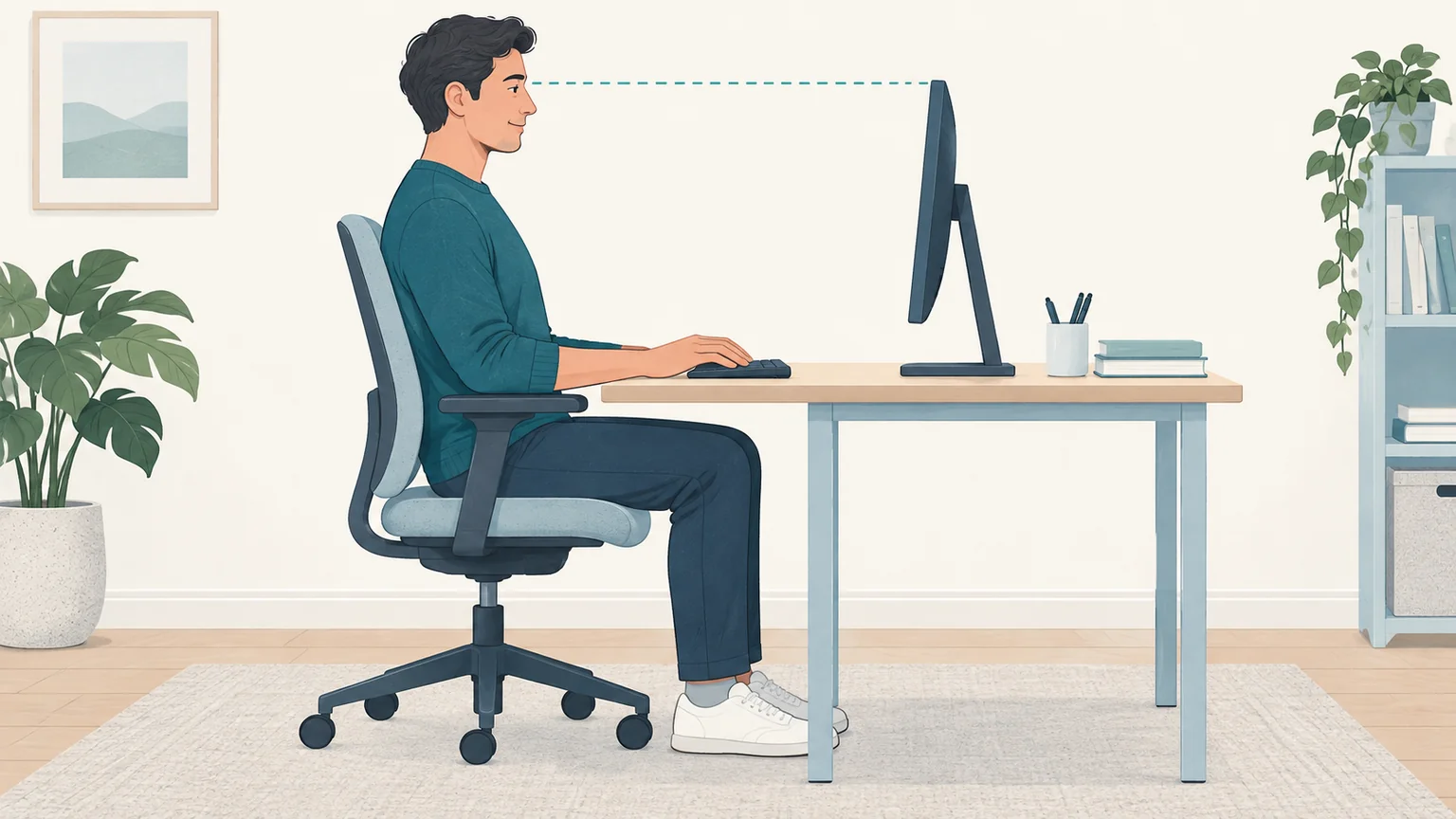
Keep the screen comfortably in view, with its top at or slightly below eye level.
Read about screen placement with progressive lenses or bifocals.
Check reflections and room lighting
Look for reflected windows or lamps on the display. If possible, position the screen at a right angle to a window. Try adjusting a blind or moving a desk lamp so its light reaches your work without reflecting off the screen.
Choose room lighting that avoids a bright light source directly behind your display or in your line of sight. Recheck the setup later in the day: a desk that works well in the morning can catch afternoon sunlight. OSHA also recommends avoiding a position directly beneath air-conditioning vents that blow onto you. Read OSHA guidance on the workstation environment.
Explore our guide to daylight, desk lamps, and screen glare.
Set up a laptop or second monitor
A laptop has a built-in keyboard and screen, so you cannot position them independently. At a regular workstation, a separate keyboard and mouse let you adjust the display while keeping the controls within reach. Use a stable support if you raise the laptop.
With two displays, put the one you use most directly in front of you and the other beside it. If you divide your time evenly, arrange them together so switching between them requires little head movement. Adjust brightness and contrast for comfortable viewing. Use the OSHA workstation evaluation checklist.
Explore laptop setups for regular and occasional use. Compare practical layouts for two monitors.
Do a quick check before settling in
- Can I read my usual text without leaning toward it?
- Is the main task comfortably in view?
- Can I adjust the screen or lighting to remove distracting reflections?
- Are the keyboard and mouse within easy reach?
- Have I set up reminders to take screen breaks?
Save useful display settings and take a quick photo of an arrangement you like, especially if you share a desk. Revisit the setup when you change equipment or work locations. Leave yourself room to move and pause during the day, even after you have found a comfortable arrangement.