Screen ergonomics
Laptop Ergonomics: Set Up a Comfortable Workspace
Practical laptop ergonomics for occasional use, a regular desk, and small or shared workspaces. Learn where a separate keyboard, mouse, or monitor can help.
Start with how you use your laptop
Answering a few messages at a kitchen table and working there all day call for different setups. A laptop connects the keyboard to the display: moving one also moves the other. Start by deciding which arrangement fits your usual work, then open a familiar document to check it.
The examples below offer three starting points. You can use equipment you already own, and you do not need to make every change at once. Try the simplest useful adjustment, then check whether reading, typing, and using the mouse feel comfortable together.
For occasional use: laptop alone
For a short task, choose a stable surface and a seat that supports you. Put the laptop in front of you and adjust the screen angle so you can read it. If text looks small, increase the document zoom before leaning closer.
Keep these sessions brief and change position regularly. OSHA recommends limiting laptop use in makeshift settings such as hotel rooms or airplanes and varying posture. If a quick task turns into a longer work session, move to a setup with more adjustment options when you can. See OSHA guidance for mobile devices.
Laptop alone: a starting point for a short task. Keep the laptop in front of you and change position regularly.
For regular work: separate the keyboard and screen
A separate keyboard and mouse let you reposition the laptop screen without moving your hands with it. If you raise the laptop, use a stable support and keep its ventilation openings clear. Set the screen height for comfortable viewing; a stand does not need to be at its tallest setting.
Place the keyboard in front of you, with the mouse beside it. You should be able to type with relaxed shoulders, elbows near your sides, and wrists in line with your forearms. Raising the laptop while continuing to use its built-in keyboard can make your hands reach upward. Read OSHA guidance on keyboard position.
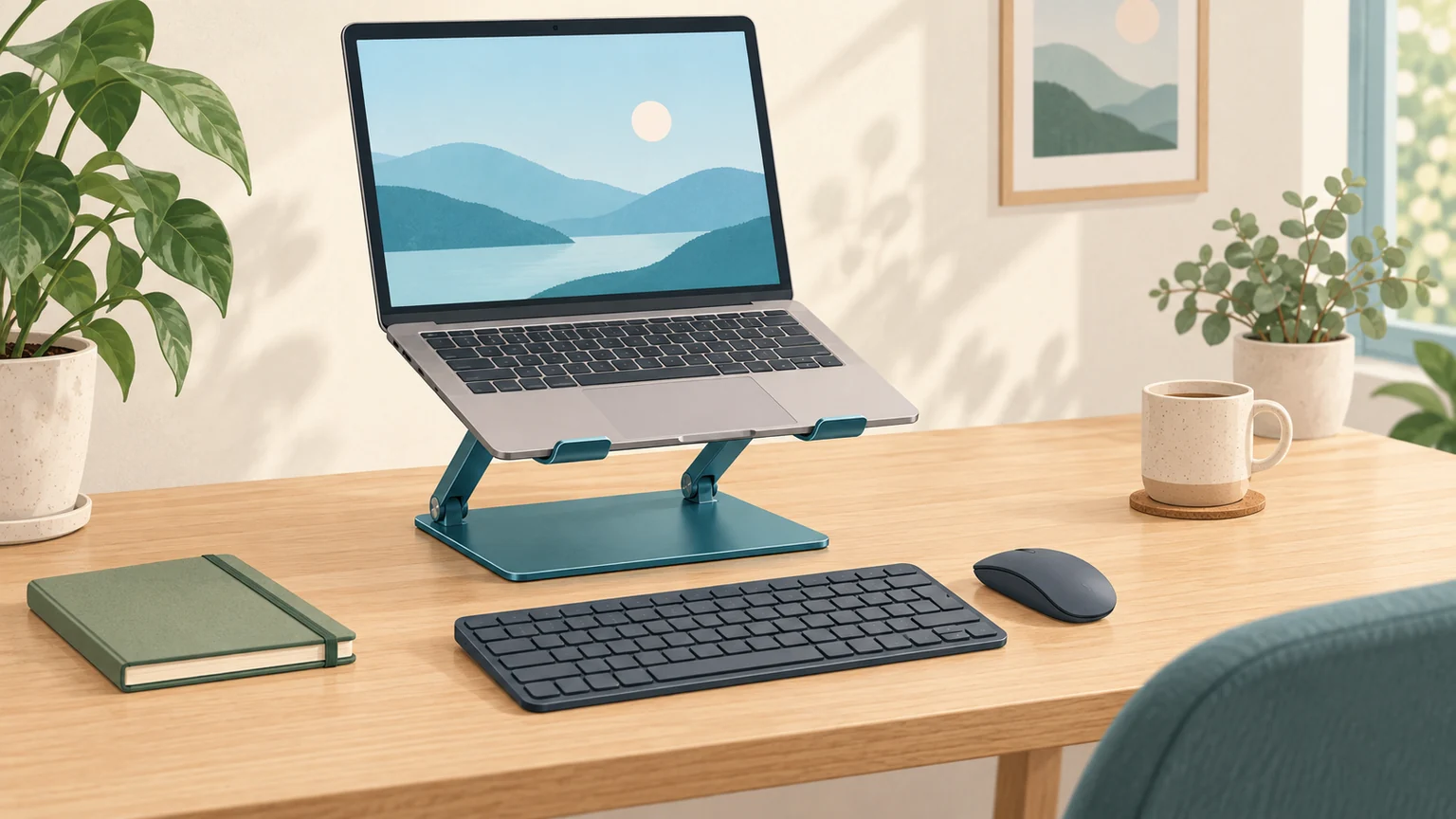
Separate controls let you adjust the laptop screen independently.
For a regular workstation: add an external monitor
An external monitor gives you more freedom to choose screen size and position. Put your main work on the display in front of you and use the separate keyboard and mouse. OSHA recommends a docking arrangement and external input devices when equipping a laptop workstation. Explore OSHA recommendations for workstation equipment.
Decide whether you actually need the laptop display as a second screen. If you keep it active, give it a clear role, such as showing a reference document. Avoid letting your main task drift onto a small screen off to one side. See example layouts for two screens.
External monitor: keep your main screen and keyboard in front of you. The laptop screen is optional. Overhead layouts are illustrative, not to scale.
Make a small or shared desk easy to reset
- Clear a place for the mouse beside the keyboard before adding more equipment.
- Consider a compact keyboard if you rarely use a number pad; OSHA notes that this can bring the mouse closer.
- Keep a photo or a short note of your preferred screen and chair positions for shared desks.
- Check your usual text after reconnecting a display; each screen may need different scaling.
Finish by trying a real task: type a paragraph, use the mouse, and read a full page. If an accessory crowds the controls or blocks your view, rearrange the essentials first. Use the five-minute desk setup check to choose your next adjustment.