Screen ergonomics
Dual Monitor Setup: How to Arrange Two Screens Ergonomically
Arrange dual monitors around your work: one primary screen, two equally used displays, or a laptop beside a monitor. Includes practical layout diagrams.
Arrange screens around the work you do most
Before moving either monitor, notice where you spend your time. Do you write on one screen and occasionally check the other, or constantly compare two documents? The right starting layout depends on that answer. The diagrams below show overhead views of three common arrangements.
Try the layout with an ordinary task, including your keyboard and mouse. The display labeled as primary in your computer settings is not necessarily the one you use most. Let your actual work determine which screen belongs in front of you.
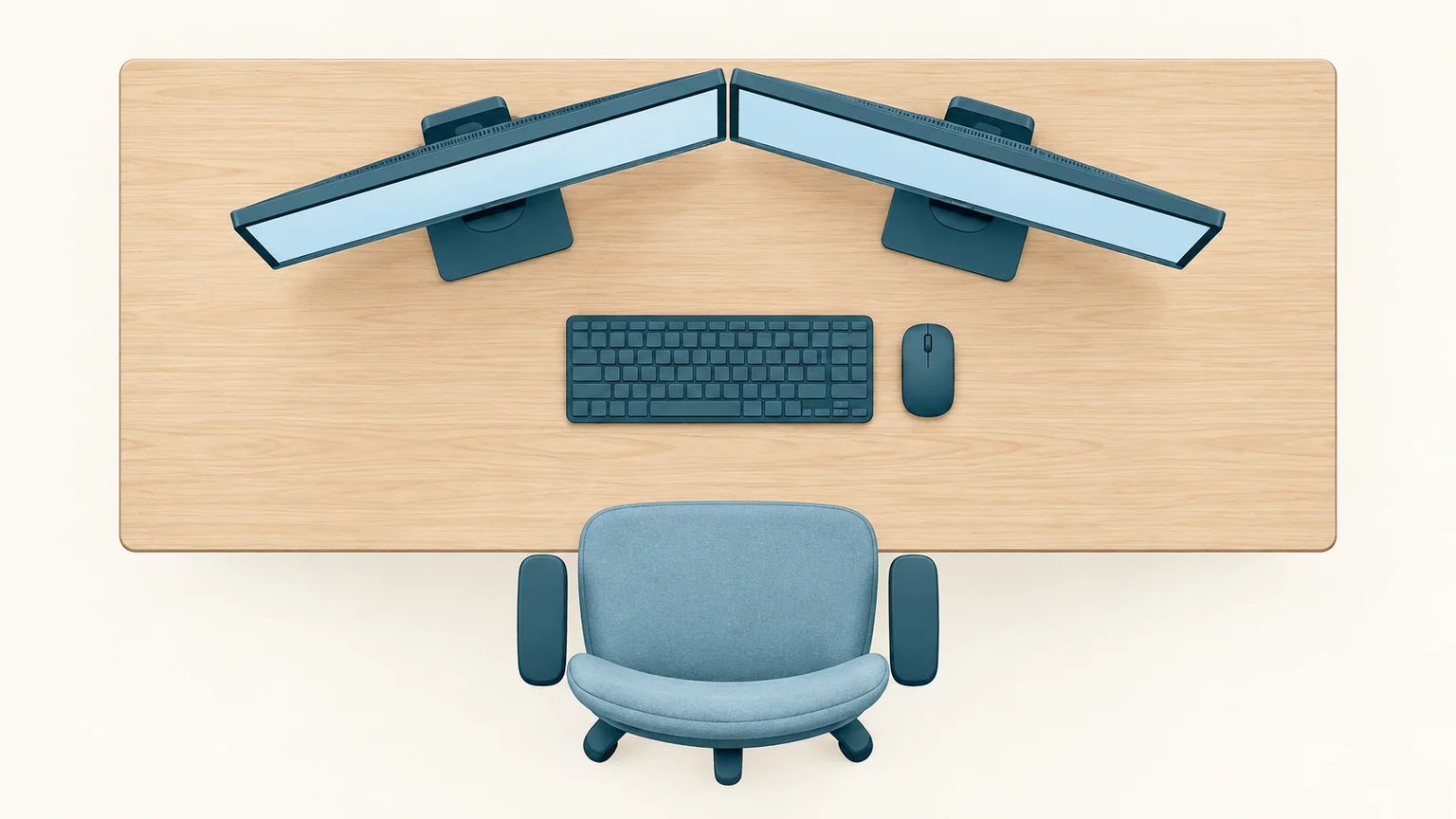
For two equally used screens, center the pair in front of you and angle them inward.
If one monitor does most of the work
Place the screen you use most directly in front of you. Put the secondary display next to it and turn it slightly inward. CCOHS recommends this arrangement when one monitor gets more use, so the main task does not require a sustained sideways head position. Read CCOHS guidance on multiple monitors.
For example, keep your writing window in front of you and a reference page beside it. If you start editing the reference document for an extended period, move that window onto the main display. Changing where a window opens is often easier than moving the equipment.
One primary monitor: center your main screen, keyboard, and chair. Keep the other screen beside it.
If you use both monitors equally
Arrange the screens side by side in front of you, with their inner edges close together and both angled inward. Sit facing the middle of the pair. CCOHS suggests a shallow semicircle for equally used displays, with similar viewing distances and screen heights.
Try this with the two applications you normally compare. If you mainly read the far outside edge of either screen, move that window toward the center. A balanced arrangement should reflect the content you look at, as well as the physical positions of the monitors.
Equal use: center the pair in front of you, with the inner edges close together.
If one screen is a laptop
When the external monitor holds your main work, center it in front of you and keep the laptop beside it for occasional reference. Use a separate keyboard and mouse so you can position the controls independently. A stable laptop support can help bring the two viewing areas closer in height.
A smaller laptop screen may not be a comfortable place for a dense spreadsheet. Try a simple reference window there, or use just the external display for the task. If you often switch between equally important work on both screens, check that the laptop text is readable before adopting the equal-use layout. Explore the laptop workspace guide.
Monitor and laptop: keep the main work on the screen in front of you and use separate controls. Overhead layouts are illustrative, not to scale.
Check readability, reflections, and reach
- Read a familiar document on each screen. Adjust text size or scaling if you lean closer to one of them.
- Check brightness and contrast on each display for comfortable viewing; the same numerical setting may look different on different models.
- Look for window or lamp reflections on both screens. Moving one display can expose the other to glare.
- Make sure the extra display has not pushed your mouse or keyboard out of easy reach.
OSHA includes primary-screen placement, comfortable viewing angles, glare, and display settings in its workstation checklist. Review the OSHA monitor checklist. Follow our Windows guide to make text easier to read.
Revisit the arrangement when your work changes. A layout for writing with occasional reference material may need a small adjustment for an afternoon spent comparing documents.