Screen ergonomics
Blurry Text in Windows 11: What to Check First
Fix blurry text in Windows 11 step by step: check display resolution, scaling, and ClearType, sharpen a blurry app, and find out why an external monitor stays blurry.
Notice where the text looks blurry
Blurry text on a Windows 11 PC almost always has a specific, fixable cause. Before changing any settings, note where the blur shows up, because the pattern tells you which fix to start with:
- Everything looks soft on every screen: start with display resolution, then scaling.
- Only an external monitor is blurry: check its resolution, its connection, and its own menu settings.
- One program is blurry while the rest of Windows is sharp: fix that app individually.
- The blur comes and goes: display settings produce constant blur, so blur that changes points to tired, dry eyes rather than pixels.
The checks below run from the most common cause to the least common. Most blurry-text problems end at one of the first two.
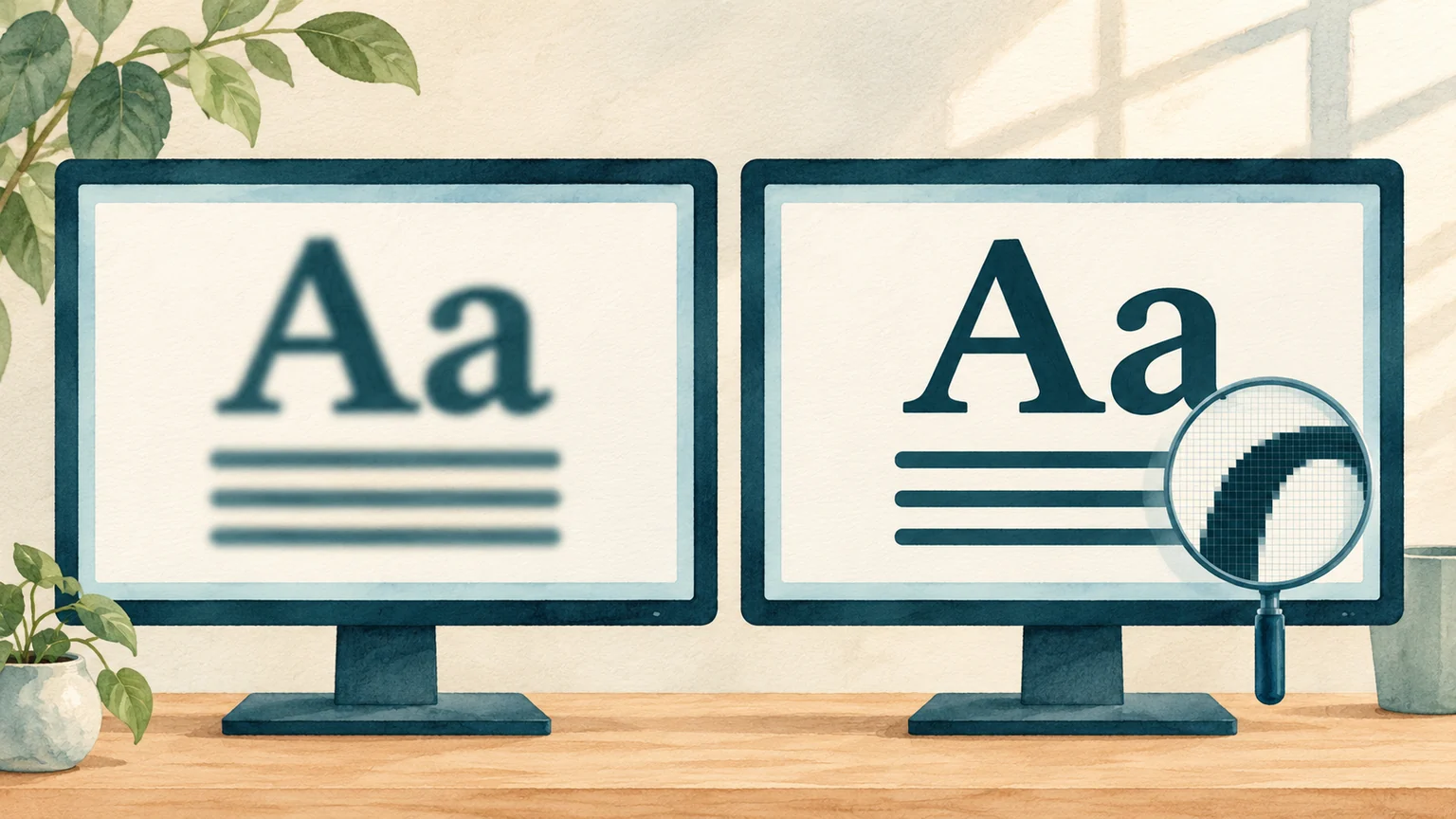
Set the display to its native resolution
A flat-panel monitor has a fixed grid of pixels, and exactly one resolution matches that grid. Windows marks it as Recommended. At every other resolution the monitor has to stretch the image to fit, which softens edges, and small text shows it first. See Microsoft's instructions for screen resolution and layout.
- Right-click an empty area of the desktop and select Display settings, or open Start > Settings > System > Display.
- If several displays are shown at the top, select the blurry one.
- Under Scale & layout, open the Display resolution dropdown and choose the value marked Recommended.
- Look at a page of text. If everything is sharp but now too small, raise the Scale percentage instead of lowering the resolution.
Running the native resolution with a larger scale keeps text sharp and readable at the same time. Learn how to make text and apps bigger in Windows.
Check display scaling
Scaling is how Windows draws text and controls at a comfortable size on sharp, high-resolution screens. The preset percentages render crisply in modern apps, but a few scaling situations produce exactly the soft text this guide is about:
- A custom scaling value. If a custom percentage was ever typed in under Settings > System > Display > Scale, many programs turn blurry. Go back to a preset such as 100%, 125%, or 150%, then sign out and back in.
- Apps opened before the scale changed. After docking, undocking, or adjusting the scale, programs that were already open can keep drawing at the old size. Sign out and sign back in so everything redraws cleanly.
- Two monitors with different scales. Keep each display on its own Recommended scale value instead of forcing the same number on both. When you drag a window to a monitor with a different scale, modern apps redraw sharply; older ones stay soft until you restart them.
Sharpen one app that stays blurry
When a single program stays blurry while everything else is sharp, Windows is stretching that app's window instead of the app drawing itself at full resolution. Three fixes, in order:
- Close and reopen the program. Apps launched before you docked, changed the scale, or plugged in a monitor keep rendering at the old scale until they restart. Microsoft gives the same advice for Office windows that look wrong on an external monitor. See Microsoft's advice for Office apps on external monitors.
- Try the automatic fix if your build offers it. Open Settings > System > Display and select Scale. If a Fix scaling for apps option appears there, turn on Let Windows try to fix apps so they're not blurry. Not every Windows 11 version shows this switch.
- Override scaling for that one program. Right-click the program's shortcut or .exe file, select Properties, open the Compatibility tab, and select Change high DPI settings. Check Override high DPI scaling behavior, choose System (Enhanced), and reopen the program.
System (Enhanced) sharpens text in many older desktop programs. If the app looks worse instead, return to the same dropdown and try Application or System. Apps from the Microsoft Store normally scale correctly without any of this.
Tune ClearType for your screen
ClearType is the text smoothing Windows applies in many desktop programs. Tuning it helps when letters look thin, gray, or fringed with color even though resolution and scaling are already right.
- Select Start, type ClearType, and open Adjust ClearType text.
- Leave Turn on ClearType checked and select Next.
- The tuner confirms that each monitor is at its native resolution, then shows several screens of short text samples. On each screen, pick the sample that looks clearest to you.
- Finish the wizard, and run it again whenever you change a monitor or its resolution.
The tuner adjusts each connected monitor separately, so it is worth finishing all screens. Some apps, including most web browsers, draw text with their own rendering and are not affected.
When an external monitor stays blurry
If text looks fine on the laptop screen but stays blurry on the external monitor, the usual causes sit between the graphics card and the panel:
- The native resolution is missing. When the monitor's full resolution does not appear in the Display resolution list, the cable, adapter, or docking station is often the bottleneck. Connect the monitor directly to the computer with a cable rated for its resolution, and prefer DisplayPort over HDMI when you have the choice.
- The monitor is processing the image. Open the monitor's own menu: set sharpness to its neutral default and turn off dynamic picture modes. On a TV used as a monitor, choose the PC or Just Scan mode (sometimes called Full or 1:1 pixel mapping) so the panel shows each pixel exactly. Colored fringes around small text over HDMI often disappear after naming the input PC or switching to DisplayPort.
- The displays are duplicated. Duplicating two screens with different native resolutions forces at least one of them off its native grid. In Settings > System > Display, choose Extend these displays instead.
- The graphics driver is generic or outdated. Install updates through Windows Update or the graphics card maker's software. With a generic driver, Windows may not offer the monitor's real resolutions at all.
Also give the external monitor its own Recommended scale value rather than copying the laptop's. Read Microsoft guidance on setting up multiple monitors.
When the screen is sharp but your eyes disagree
Sometimes every setting is correct, the pixels are sharp, and text still slides out of focus. A quick test: blink a few slow, complete blinks. If the text sharpens for a moment and then fades again, your eyes are the more likely cause, because blur from display settings does not come and go.
During concentrated screen work you blink less often and less completely, so the tear film that keeps vision crisp dries unevenly between blinks. The National Eye Institute lists blurry vision among the symptoms of dry eye. Read the National Eye Institute's overview of dry eye.
Short breaks and full blinks let the tear film rebuild before the blur sets in, and BlinkEasy can quietly remind you of both while you work. Learn why eyes get dry at the computer.
If text looks blurry on every screen, on paper as well, or mainly in one eye, an eye exam is the right next step. An outdated glasses or contact lens prescription blurs text no matter which Windows settings you change.