Screen comfort
Why Do My Eyes Get Dry at the Computer?
Eyes dry at the computer? You blink less when you concentrate, and moving air speeds up evaporation. Practical desk changes and what an eye exam can show.
What changes during focused screen work?
You sit down to answer a few emails, move on to a document, and suddenly an hour has passed. If your eyes feel dry during these sessions, it is useful to look at the whole situation: the task, your surroundings, and the pauses you take.
In an NIH interview, ophthalmologist Chantal Cousineau-Krieger explains that blink rate can fall during concentrated reading or computer work. She also identifies air blowing toward the face as a contributor to eye dryness. Screen habits and the room around you can both matter. Read the NIH article on eye discomfort.
Blinking less often is only part of the picture. More of your blinks may stop short of closing fully during screen reading, and dry or moving air can make tears evaporate faster between blinks. Read about incomplete blinking. Learn how tears evaporate between blinks.
Dry-feeling eyes are one of several complaints linked to long screen sessions. Our computer vision syndrome guide covers the others, from tired eyes to neck tension. If you wear contact lenses, a little planning can make long screen days easier. Read our guide to computer vision syndrome. Plan a long screen day with contact lenses.
BlinkEasy helps you notice when your blink rate falls during focused work and reminds you to blink consciously.
Check the airflow at your desk
The National Eye Institute notes that windy, smoky, or dry surroundings can make tears evaporate faster. This is a reason to include room conditions in your desk review, even when the screen itself seems comfortable. See the NEI explanation of dry-eye contributors.
- Check whether a desk fan points toward your face or an overhead vent blows across your seat.
- Try a different fan direction or desk position while keeping the room comfortable for everyone.
- Consider whether the same setup feels different when heating or air conditioning is running.
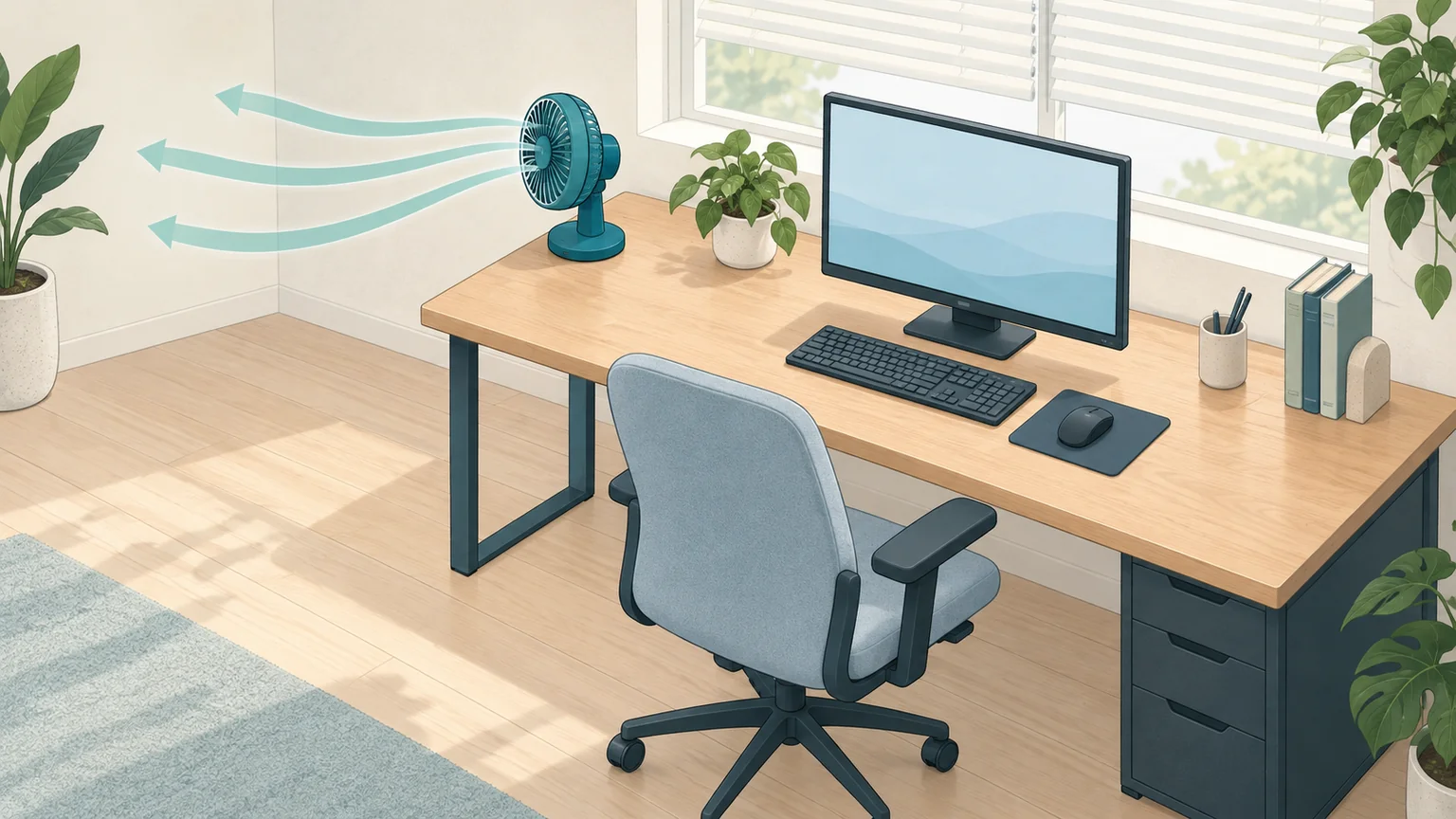
Check where fans and vents direct the air around your desk.
In a 2017 study, 44 computer users each completed two one-hour sessions on separate days, one with a desktop humidifier and one without. The order was randomly assigned.
| Measurement | Study finding |
|---|---|
| Greater eye comfort than at the start of the session | 36% of participants with a humidifier, compared with 5% without |
| Tear-film stability (noninvasive breakup time) | Median breakup time was 4 seconds longer with a humidifier than without one. |
| Tear strip height and oily-layer grade | No significant difference between conditions |
Source: Wang MTM, Chan E, Ea L, Kam C, Lu Y, Misra SL, Craig JP (2017). Randomized trial of desktop humidifier for dry eye relief in computer users. Optometry and Vision Science, 94(11), 1052–1057.
The study tested one device during brief sessions. It did not establish lasting dry-eye relief or an ideal room-humidity level.
Make the task easier to see
Start with a document or webpage you read regularly. Is the text small enough that you keep moving closer? Does a reflection make you shift in your chair? Try a larger zoom level or move a lamp, then continue with the same task to see whether the arrangement suits you better.
Larger text and controls can make Windows easier on the eyes. Our guide covers display scaling, text size, and browser zoom. Make text and apps bigger in Windows.
Save useful settings in your usual applications. A comfortable browser zoom does little for the spreadsheet that always opens with tiny text. Our desk setup guide walks through the details one at a time. Review your screen ergonomics.
Let BlinkEasy remind you to pause
BlinkEasy keeps an eye on your blink rate so you can concentrate on your work. When a reminder appears, take a short pause, look away from nearby screens, and blink a few times, letting your eyelids close fully. Try BlinkEasy free for 14 days.
Adjust the reminder settings to fit your workday. Our blinking-break guide offers a short routine to use when BlinkEasy prompts you. Try a simple blinking break.
Notice patterns without chasing a score
BlinkEasy's blink reports show screen time, breaks, and average blink rate for each day, making it easier to compare your computer use across days. Look at similar workdays or compare days before and after adjusting your reminders or workspace.
When comparing days, consider the tasks you worked on and any changes to your setup. Use the reports to spot habits you want to keep or adjust.
Talking to an eye care professional
If you have questions about dry-feeling eyes, an eye care professional can examine your eyes and explain what they find.
An eye doctor can check how many tears your eyes make and how quickly the tear film breaks up after a blink. Bring a few notes about your screen time, your desk setup, and whether you wear contact lenses. See how eye doctors test for dry eye.